
Neovim

Notes about my setup with Neovim: To quote "ThePrimeagen," "I use Vim, BTW."
- Terminology
- Back to the basics of movement
- Advanced motions
- Insert mode
- Making Vim your own
- Plugins
- Quickfix lists
- Search and replace
- Macros
- Registers
- Tips and Tricks
- My current setup
Terminology
Buffer
A buffer contains the text of the file and is what you edit
:h buffer
Window
Contains a buffer to display. Windows can be closed, but the underlying buffer can remain in memory.
:h window
Tabs
A tab is like another viewport. You can have many windows|splits open per tab.
:h tab
Splits
A split simply refers to splitting the viewport into N sections (various sizing and orientations available) to display windows.
Other terminology
Getting help
Help can be accessed by typing :h<enter>
h optionsh <tabcomplete or ctrl-d>h <specific option name>
Motion
A command that moves the cursor:h motion
:h split
Back to the basics of movement
"Snake, try to remember some of the basics of CQC"
h,j,k,lfor basic movement (left, down, up, right).w, bfor word hopping. LikeCtrl+ arrow keys.yyto "copy" a line called Yank.ddto delete and yank a line.pandPto paste the contents of the implicit register below/abovexdeletes a single character
Advanced motions
Horizontal
cis the equivalent ofd, but it ends with you in INSERT mode. So delete the line and go to insert mode. It respects indents on applicable file types._takes you to the beginning of a line or the first non-whitespace0takes you to the very beginning of a line$will go to the end of the lineDdeletes everything to the right of the cursor to the end of the line. Equivalent ofd$Cis the same as D, but it takes you to INSERT mode.Sdeletes the whole line respecting indentation and goes to INSERT mode.Xdeletes a single character and goes to INSERT mode.fjumps to the following capital letter, e.g.,fTwill go to the first T inConTentand stand on it,to find the next occurrence.;to go back to a previous occurrence.
Fis the same asfbut backward, same ergonomics asfwhen looking for the occurrences.tandTwork the same as their f counterparts, but they stop one character before the occurrence.
Vertical
C-dto jump down andC-uto jump up. This is tied to the viewport; the more zoomed in you are, the smaller the jumps.{and}to jump between code opening and closing in any language. It is pretty handy to have on Spanish-based keyboards ;)[m,]m,[M, and]MThis will move by "function". It works pretty well in C-style languages.%Pair jumper. It doesn't work with text but with[],{}and(), e.g.
if (<condition>) {
...
}
Insert mode
iandafor which side of the cursorIandAfor which side of the lineoandOfor below/above linezRedraw, line [count] at the center of the window (default cursor line). Put the cursor at first, nonblank in the line.zzis like "z" but leaves the cursor in the same column. Careful: If caps-lock is on, this command becomes "ZZ": write buffer and exit! (From the docs)
File navigation
Opening file navigation
:Vex
(V)ertical (ex)plore
File tree
" short for edit
:e
Using <ctrl-d> or tab after typing:e results in tab completion! To navigate the results, you can use arrow keys, or you can navigate the Vim way, which is Ctrl + p or <C-p> and Ctrl + n or <C-n>
It's possible to use fuzzy finders using plugins like telescope.vim
Marks
Vim gives you the ability to mark files locally and globally. To move to a marked file, you can do '<MarkLetter>. To mark a file, you can do it in normal mode, m, and then an upper case letter of your choice.
Mark Theory
- Buffer level marks are written in lowercase and won't transfer between files; if you try using the same mark in another file, you will get an error.
- Global marks are written in uppercase, which transfers in the same Vim session or project, allowing you to move between files quickly.
ThePrimeagen mentioned that using the mark 'M for the main function of your project would be a great way to remain consistent in using marks and always having the "main" file in a project ready at will.
Making Vim your own
Just like a particular fast food chain, "Have it your way."
Some good default options to enable
Line numbers
:set number
Relative numbers
"sets relative numbers
:set relativenumber

" turns off relative numbers
:set norelativenumber
Tired of doing zz all of the time?
:set scrolloff=8
Scrolling around should recenter the screen
Tab configuration
Note: All of these options can be set on the vimrc file. Neovim docs
set tabstop=4 softtabstop=4
set shiftwidth=4
set expandtab
set smartindent
Example configuration file with colors
set scrolloff=8
set number
set relativenumber
set tabstop=4 softtabstop=4
set shiftwidth=4
set expandtab
set smartindent

colorscheme desert
Remaps
A simple remap in action
let mapleader = " "
nnoremap <leader>pv :Vex<CR>
let mapleader = " ". Leader is a way to set a custom key in vim that can be referenced in remaps as <leader>
nnoremap is the syntax for remap
mode lhs rhs
Mode is what mode the remap should work on, e.g. INSERT, NORMAL, VISUAL
" normal mode        no recursive execution          map A -> B
n                    nore                            map
lhs
lhs or left-hand side is the set of keys to execute the remap, in the example above <leader>pv where the leader is <space>
rhs
rhs or right-hand side is the command to execute after the lhs has been typed in. In the example above, the command :Vex<CR> would be executed.
sourcing config files
Vim, by default, won't source config files automatically; you can run the following command in normal mode to source the currently open file:
" so = source
" % = current file
:so %
A handy remap to have when sourcing files continuously
" I use neovim, btw
nnoremap <Leader><CR> :so ~/.config/nvim/init.vim<CR>
From the Frontendmasters Vim course by ThePrimeagen
To quote him, "Now I can simply press <space><enter> to resource my vim rc anytime I make changes."
Plugins
While Viml is the language of choice for classic Vim, Neovim supports Lua.
To quote ThePrimeagen once again
Yes, that not so pretty language VimL is a primary vehicle in making things nice. In NeoVim you can use Lua, which is quite nice. Especially when you consider that there is a Typescript -> lua converter. Which means you can use a typed language and get type completion and create vim plugins. 42069IQ
From the Vim Fundamentals course
Plug is the recommended plugin manager compatible with Vim and Neovim
Installing plugins is a matter of adding the following to the .vimrc file
call plug#begin('~/.vim/plugged')

Plug 'junegunn/fzf', { 'do': { -> fzf#install() } }
Plug 'junegunn/fzf.vim'

call plug#end()
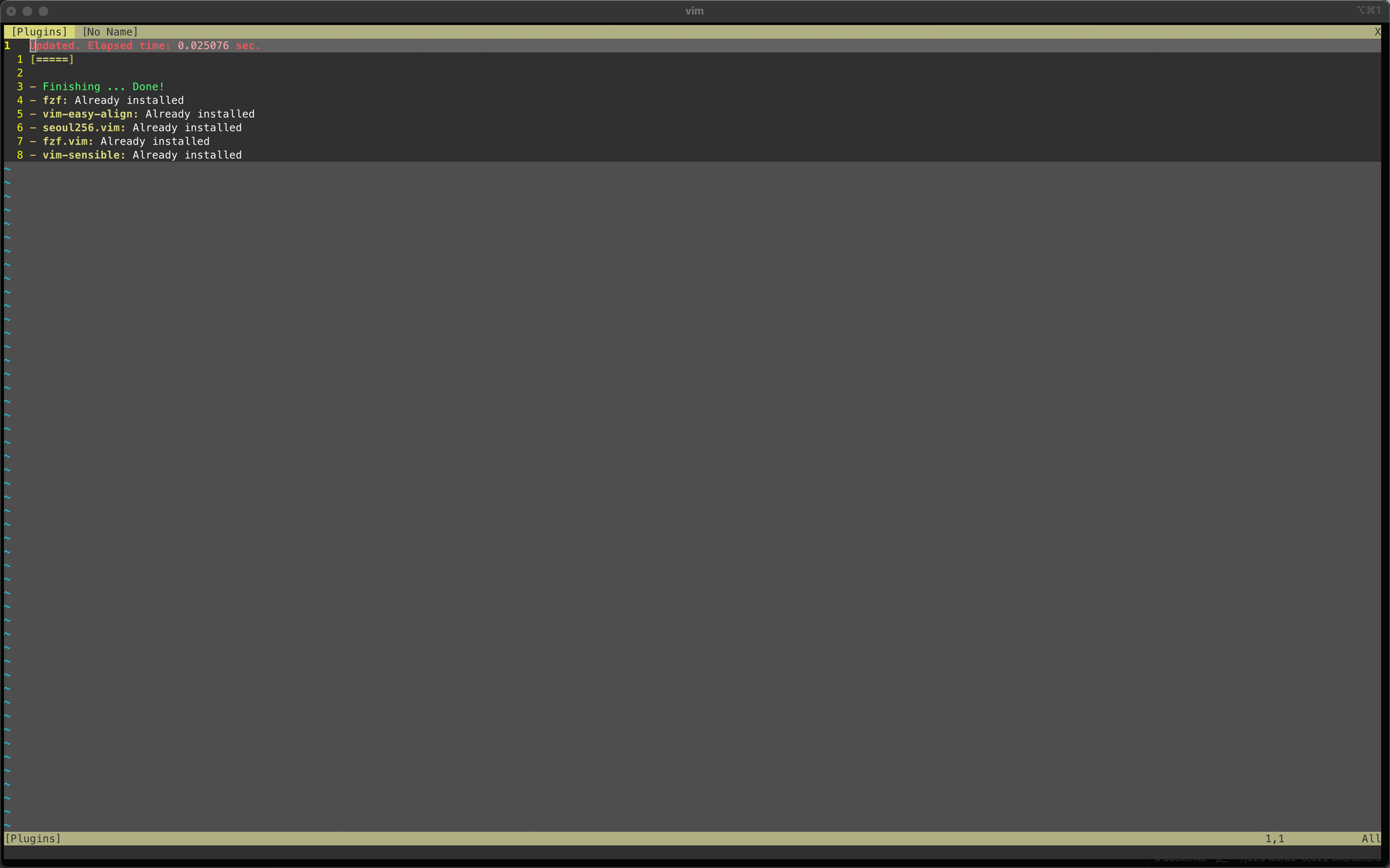
This adds the FZF (fuzzy finder) to Vim, once sourced with :so % you can run :PlugInstall
The above command will display a menu similar to this one.
Quickfix lists
Just like an IDE, you can search across a directory (or project) and get a list of files of the string of Regex you want to search for, but instead of using a tool specific to the IDE, you can use tools like grep or ripgrep and get a list of results and perform refactors on said list.
If you run the following in a project with C files
:grep SOCKET_OPEN **/*.(c\|h)
You should be returned to the terminal session where you opened Vim from and get a list like this.
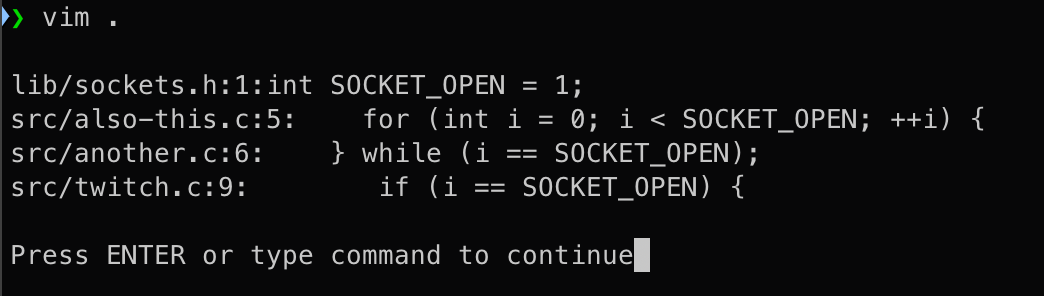
If you press <CR>, Vim should open the first file from the quick fix list; running the :copen, :cnext, and :cprev commands allows you to work with the quick fix list
:copen
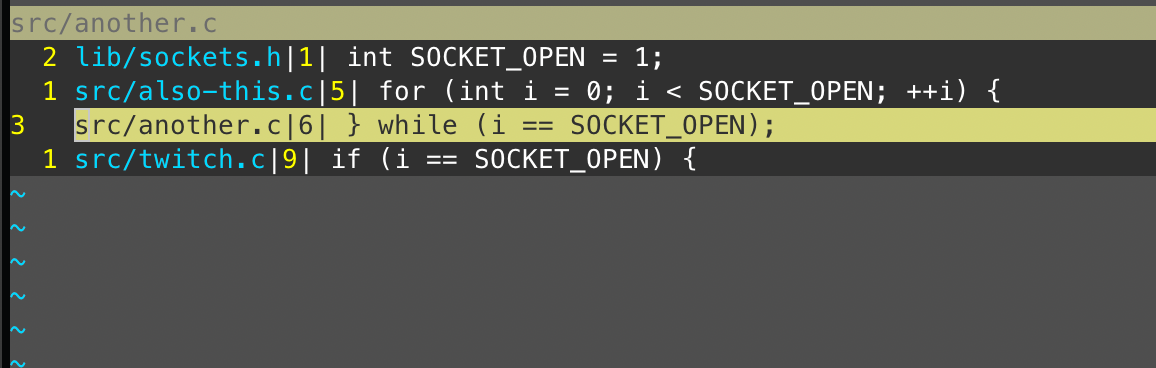
To quit this menu :q just like any other buffer. Navigating consists of the same hotkeys as navigating in NORMAL mode
ThePrimeagen recommends the following remaps
" I don't know if I love these remaps yet.  I am considering doing
" <leader>c(k|j|o)
nnoremap <C-k> :cnext<CR>
nnoremap <C-j> :cprev<CR>
nnoremap <C-E> :copen<CR>
Search and replace
Basic search
/<search><CR> is basic search
You can extend the above using regexes, e.g.:
/err.*or<CR>
Search and replace across a buffer
To replace one result, you can run /:s/<search>/<replace><CR>
To replace all instances in one line, /:s/<search>/<replace>/g<CR>
To replace all instances in one line and add a prompt to confirm,/:s/<search>/<replace>/gc<CR>
To replace across the entire buffer, /%s/<search>/<replace>/gc<CR>
Ranged search and replace
If you select text using Visual mode, search and replace can be run when pressing : to bring the command prompt input, it should display '<,'> automatically, from there, you can run the command from the previous section:
'<,'>/s/<search>/<replace>/<flags><CR>
Macros
Even when you think you are good at using Vim, macros will come and get you. "Macro pressure" is the term for this phenomenon, and it's akin to stage fright
q starts recording a macro (normal mode)
Then press any letter from a to z (if you have tmux, you might have to press the same key twice due to the rebinds). Once you have recorded your macro, you can end the recording by pressing q again in normal mode
Example:
Suppose you have the following code:
const a = [
	1,
]
Go to 1, start recording your macro, and press C-a. This increments the number found where the cursor is currently in the buffer by 1, yanks it and pastes it into the following line.
Finish recording your macro and type@<macro_letter>; this will call the macro and execute the actions.
You can even do the same actions as with any other shortcut, e.g. 100@<macro_letter> and it will do the same command 100 times
Registers
:reg to open the register list
But what are they? The simplest way to put them is that they are a key-value store. A single character to a string in this case.
When you open the registers, the lists show up like this:
Type Name Content
  c  ""   foo^J^J
  c  "0   foo^J^J
  c  "1   ### Basic Search^Jsearch for `error` by typing `/error<CR>`^J^Jerror^J^JLets type a command in.  :set hls ic^JWhat just happened?^JRe-search `error`^J^Jerror^J^JBut you can do more! try searching `/err.*
  c  "2   7j
Notice that the name of the registers always starts with double quotes " this is a hint; for example say you yank the following line
foo
in the register list, the implicit register and the 0 register hold the contents of what you just yanked
Type Name Content
  c  ""   foo^J^J
  c  "0   foo^J^J
But say you wanted to store the yanked contents to the "2 register you could. do V"2y and if you look into the register list
Type Name Content
  c  ""   foo^J^J
  c  "0
  c  "2   foo^J^J
The implicit register still has the contents, but register 0 has no content, and register 2 has the yanked line.
Does this mean that you can edit registers? Yes
You can even paste the contents of a register
"2p would result in foo
What about the lettered registers? e.g., "a. Well, those contain what you recorded in your macros, and since you can edit your registers, if you got macro pressure, paste the contents of your macro, update it, and then yank it again to the register where you recorded your macro and that will help mitigate some of that stage freight.
Tips and tricks
Neovim only
Get the current location of the .vimrc file
:echo stdpath("config")
Search and replace
The one-eyed Kirby
It searches content inside parenthesis like conditionals or function arguments.
\(.*\)
Search and replace also store results inside variables so you can flip stuff around, e.g.
/'<,'>/(\(.*\) && \(.*\)) {(/\2 \&\& \1)}
Visual mode
V$ prevents the new line from being selected when selecting whole lines
My current setup
As of 2024-11-18
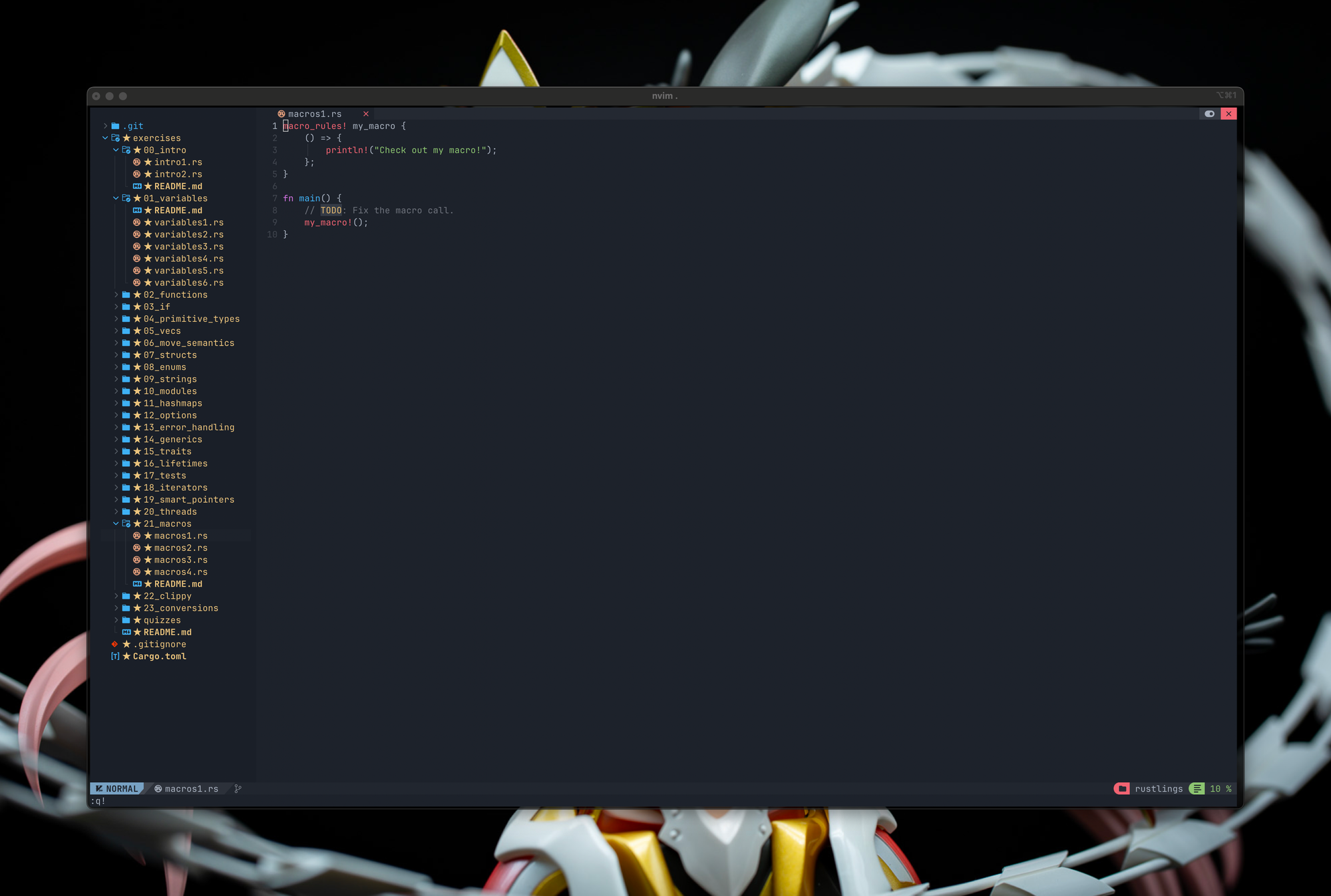
- Terminal: iTerm2
- Vim or Neovim: Neovim
- Starter: NvChad, forked the NvChad starter https://github.com/tracevt/neovim-init
- Theme: OneDark